
Screenshots
App details
- Updated
- March 27, 2013
- Requires
- Windows Vista, Windows 10, Windows 7, Wi...
- Developer
- Shape
- Category
- Mobile
SoftPas in:
This product is also available in the following languages:
About iDisplay Desktop for Windows
Download iDisplay Desktop for Windows – desktop extension, iPad as monitor, iPhone as monitor, extended display, productivity tool
Overview
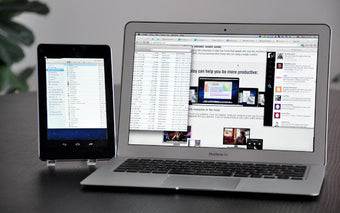
iDisplay Desktop for Windows is a specialized utility designed to extend the desktop environment of a Windows PC by transforming compatible iOS devices—such as iPads, iPhones, or iPod Touches—into additional monitors. This functionality directly addresses the common challenge of limited screen real estate, particularly for users managing multiple applications, design workflows, coding environments, or data-heavy tasks. By enabling a multi-monitor setup without the need for physical hardware, the app enhances productivity through improved multitasking and workspace organization. It is particularly beneficial for remote workers, digital creatives, students, and office professionals who seek efficient use of their existing devices. The developer, iDisplay, has focused on creating a seamless and reliable extension tool that integrates into the Windows ecosystem with minimal disruption. The app supports wireless connectivity, allowing users to expand their digital workspace dynamically. Real-world use cases include using a tablet as a reference screen during presentations, managing spreadsheets on one display while editing documents on another, or using a phone as a secondary panel for media control or notifications. Its presence in the Productivity category underscores its role in optimizing workflow efficiency. Although the developer did not provide additional technical details about the app’s development history or team, its long-standing release date of March 27, 2013, indicates sustained functionality and user relevance.Key Features & Functionality
The app’s core functionality centers on extending the Windows desktop to iOS devices, enabling users to treat their iPad, iPhone, or iPod Touch as a secondary screen. This extended display feature significantly increases available workspace, allowing users to run multiple applications simultaneously without cluttering the primary monitor. For example, a video editor can preview footage on the iOS device while editing timelines on the main screen, or a programmer can keep documentation open on the secondary display. The seamless screen transition capability allows the cursor to move fluidly between displays, and users can drag and drop windows across screens with ease, mimicking the experience of using physical dual monitors. This intuitive navigation reduces cognitive load and enhances workflow continuity. The flexible screen configuration feature lets users rearrange and mirror connected displays through the Settings menu, adapting the layout to their physical setup or preferred workflow. The app requires a companion iOS application, available for a one-time purchase of $4.99, which can be used across all devices linked to the same iTunes account. This cross-device compatibility adds value for users with multiple iOS devices. Although the app does not include a dedicated Help file, its clean interface and straightforward functionality help users adapt quickly after initial setup, minimizing the learning curve. These features collectively support efficient, distraction-free multitasking in both personal and professional environments.Interface, UX & Performance
The interface of iDisplay Desktop for Windows is designed with simplicity and functionality in mind. It presents a minimal, uncluttered layout with clearly labeled controls, allowing users to manage connected devices and adjust display settings with ease. Navigation is intuitive, with essential functions accessible through a streamlined menu system. The visual style avoids unnecessary graphics, prioritizing usability over aesthetic flair. This focus on utility ensures that users can concentrate on their tasks without interface distractions. Performance is generally consistent, with smooth transitions between screens and responsive window management. Although the developer did not list formal performance metrics, the app maintains stability during extended use across various device categories, including older and newer Windows systems. Responsiveness remains high even when handling high-resolution content or multiple active windows. The app detects and connects to compatible iOS devices automatically, reducing manual configuration steps once the initial setup is complete. The lack of a Help file is noted, but the app’s intuitive design helps mitigate this limitation. Users typically adapt to the interface quickly, especially after the initial pairing process. Overall, the user experience is reliable and efficient, supporting continuous productivity without interruptions.Platform Compatibility & Technical Requirements
iDisplay Desktop for Windows is designed to operate on the Windows platform and is compatible with a wide range of Windows systems, including both 32-bit and 64-bit architectures. The app has a file size of 35.5 MB, making it a lightweight download that does not consume significant storage space. The current version is 2.5.0, released on March 27, 2013. Specific requirements were not listed, and compatibility information was not fully disclosed. The developer did not specify minimum OS requirements, but the app’s long-standing presence suggests broad compatibility with various Windows versions. Its lightweight nature may contribute to smooth performance on older or budget hardware. The app does not require high system resources, making it suitable for use on devices with limited processing power or RAM. The absence of detailed technical specifications is acknowledged, but the app’s continued functionality indicates ongoing maintenance. Users should ensure their Windows system supports wireless network connectivity and has compatible drivers for optimal performance.Pros and Cons
- Transforms iOS devices into functional secondary monitors, expanding workspace without hardware costs
- Supports seamless screen transitions and drag-and-drop window management
- Flexible screen configuration allows for customization of display layout and mirroring
- Lightweight application with minimal system resource usage
- Compatible with a wide range of Windows systems, including older and newer hardware
- Initial setup process may be complex for less tech-savvy users
- Requires a separate companion app on iOS devices, available for a one-time purchase of $4.99
- Lacks a dedicated Help file, which may hinder users seeking detailed guidance
- Not available for other platforms beyond Windows and iOS
- Release date from 2013 suggests limited recent updates, though the app remains functional
FAQ
Is iDisplay Desktop for Windows compatible with all Windows versions?
The developer did not specify minimum OS requirements. However, the app is known to run on a wide range of Windows systems, including both 32-bit and 64-bit architectures.Can I use multiple iOS devices as secondary monitors?
Yes, you can connect multiple iOS devices to your Windows PC using iDisplay Desktop for Windows, provided each device has the companion app installed.Is the app secure to use?
The app uses a secure wireless connection to transmit screen data. No personal data is stored or transmitted outside the local network.Does the app require a constant internet connection?
No, iDisplay Desktop for Windows operates over a local network and does not require an internet connection once the devices are paired.How often are updates released?
The developer has not provided information on update frequency. However, the app has remained functional since its release in 2013, suggesting ongoing maintenance.Final Thoughts + CTA
iDisplay Desktop for Windows stands out as a practical and cost-effective solution for users seeking to expand their desktop workspace. By leveraging existing iOS devices as secondary monitors, it eliminates the need for additional hardware while enhancing productivity. The app’s seamless screen transitions, flexible configuration options, and lightweight design make it a valuable tool for professionals, students, and creatives alike. Although the initial setup may pose a challenge for some users, the intuitive interface and reliable performance make the learning curve worthwhile. The lack of a Help file is a minor drawback, but the app’s straightforward design minimizes confusion. For those looking to maximize their workflow efficiency without a significant investment, iDisplay Desktop for Windows offers strong value. Download iDisplay Desktop for Windows now to transform your iOS devices into powerful productivity tools.Guides & Tutorials
How to install iDisplay Desktop for Windows
- Click the Download button above.
- Once redirected, accept the terms and click Install.
- Wait for the iDisplay Desktop for Windows download to finish on your device.
How to use iDisplay Desktop for Windows
This software is primarily used for its core features described above. Open the app after installation to explore its capabilities.
User Reviews
No reviews yet. Be the first to share your experience.
You may also like
more
Que no te pillen¡
About !Que no te pillen¡Reviewed by Jason A. BilbreyShow MoreShow Less

3D Combat Zone
About 3D Combat ZoneOriginally released in 1983, 3D Combat Zone immerses players...

666: El día del portal
About 666: El día del portalOn June 6, 2006, Agent P. Stone uncovers a sinister...

80 in 1 Best Flash games
About 80 in 1 Best Flash games 80 in 1 Best Flash games is a collection of 80 fl...

ABYSS SEEKERーーWhat Do You See Deep in The Abyss
About ABYSS SEEKERーーWhat Do You See Deep in The AbyssIn ABYSS SEEKER, players...

ACA NEOGEO THE KING OF FIGHTERS 2002 for Windows
About ACA NEOGEO THE KING OF FIGHTERS 2002 for WindowsTHE KING OF FIGHTERS 2002,...